
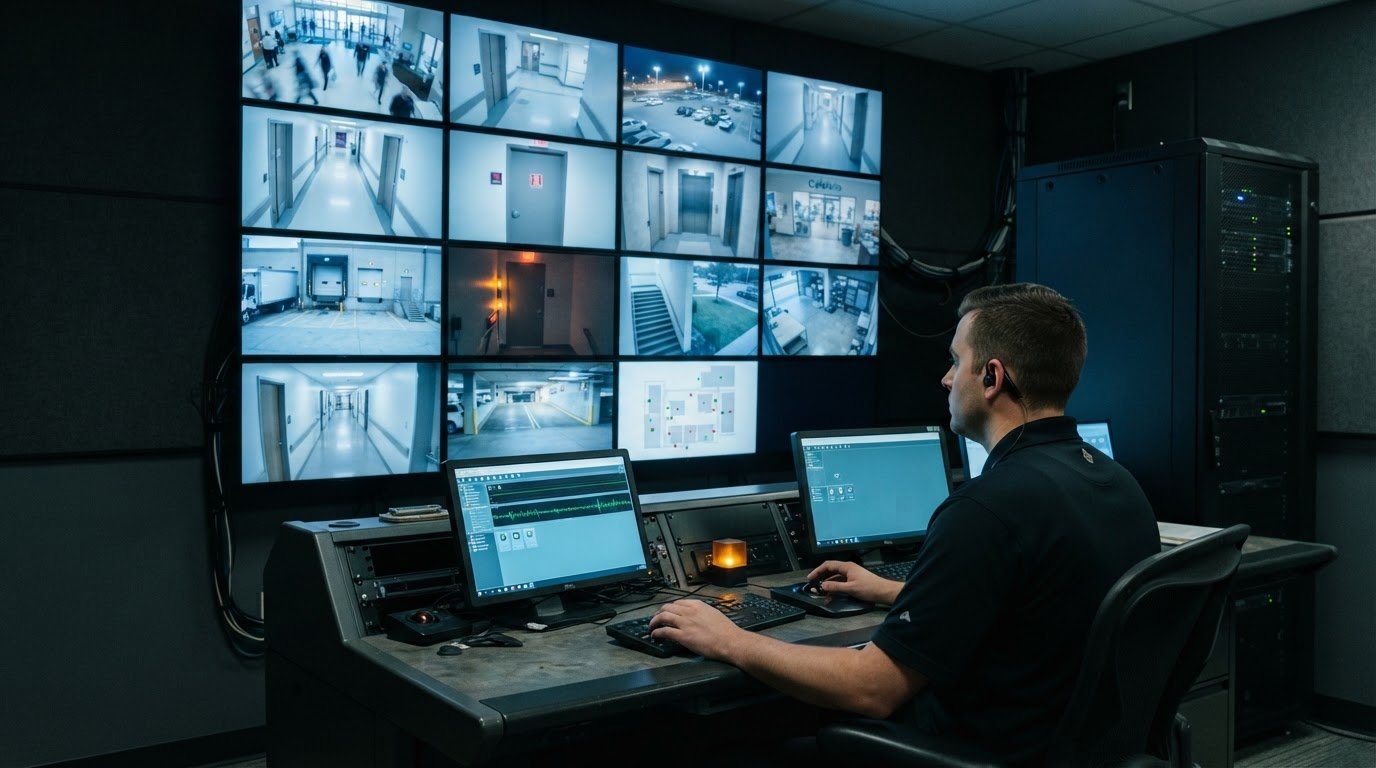
Fragmented camera views, disconnected alarms, and manual escalation can leave operators sorting through data when they need a clear operational picture. Effective multi-source video management brings video sources into a coordinated environment, while architecture, bandwidth, recording limits, camera compatibility, security, and remote access determine how well it serves the team.
A video management system (VMS) helps teams monitor camera feeds and related events from a shared interface. Yet combining sources alone doesn’t resolve silos or ensure that the right information reaches operators at the right moment. This guide explains how on-premise VMS components work together, what affects recording and network performance, and how ONVIF compatibility and remote access factor into system design.
Most control rooms already have the screens. What they’re missing is the layer that decides what goes on them – and escalates automatically when something needs attention. vis/ability provides an operational intelligence layer that surfaces through the video wall. The sections ahead explain the technical decisions behind a clearer operating picture, helping teams assess their video environment with confidence.
Key Takeaways
- Identify how fragmented feeds, silos, and manual escalation can undermine operators’ situational awareness.
- Understand how local servers, connected systems, and remote camera control shape an on-premise VMS architecture.
- Assess how network capacity and recording rules affect which footage is available when an incident needs review.
- Use ONVIF compatibility and software integration as key considerations when bringing camera sources into a shared view.
- See how event-driven situational awareness can help unify operational information across control rooms and distributed teams.
The operational gap in on-premise security teams
Control room situational awareness problems often begin before an incident reaches an operator. Camera feeds, access events, alarms, and dispatch information may sit in separate systems, each with its own interface and operating logic. Staff must switch views, interpret signals, and connect details manually. This fragmented workflow makes it harder to distinguish a developing event from routine activity and build a shared, current picture across the team.
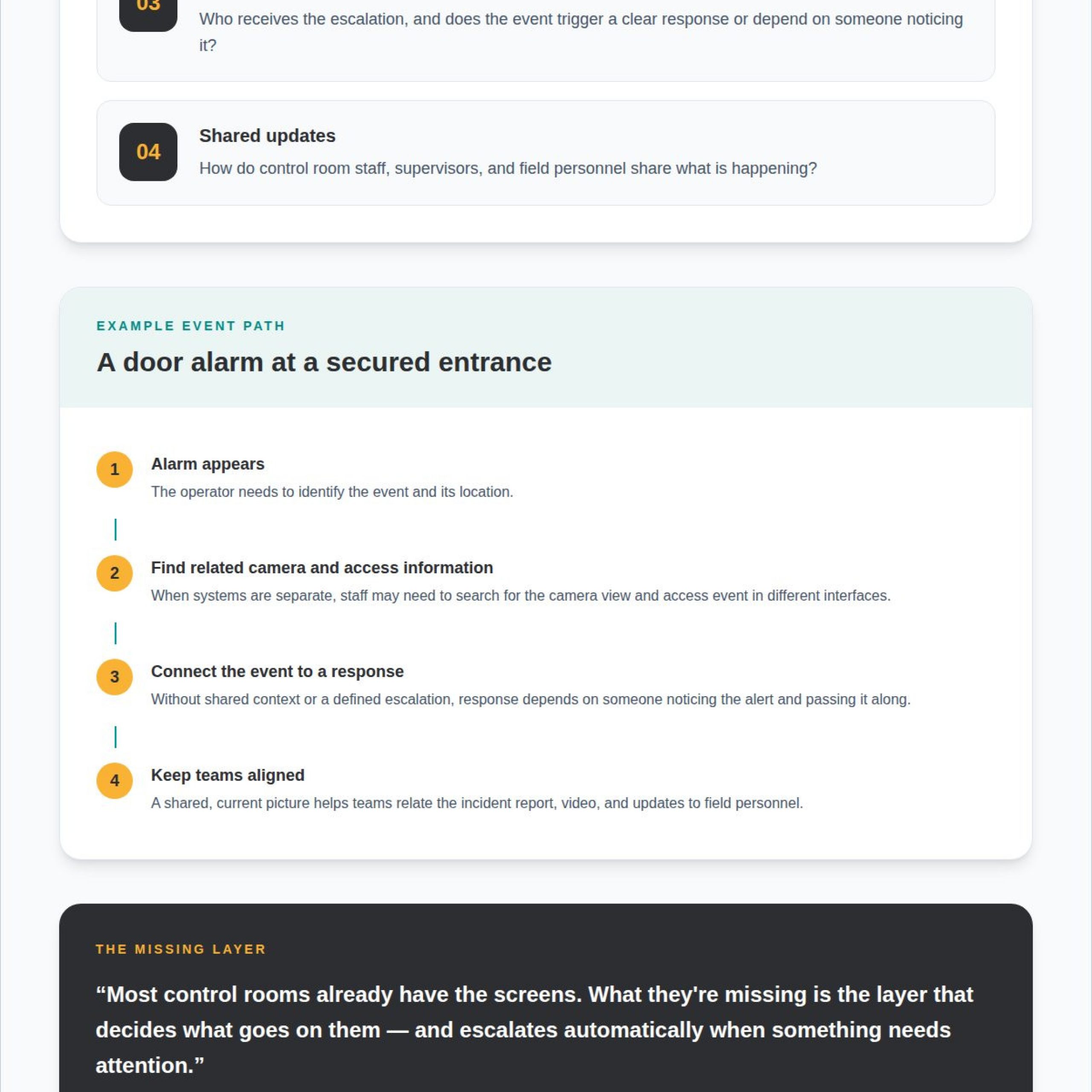
Consider a door alarm at a secured entrance. An operator may need to find the relevant camera, locate the access event in another system, and notify the right team through a separate channel. If the tools do not share context or trigger an escalation, the response depends on someone noticing the alert, finding supporting information, and passing it along. Each handoff can delay the response or leave communication incomplete.
Silos also complicate coordination beyond the control room. A supervisor may be working from an incident report while another team watches video and field personnel receive updates through a different channel. Each group may hold a valid piece of the picture without seeing how the pieces relate. More feeds alone will not close that gap. Operators need relevant information organized around the event, clear escalation paths, and a shared understanding of what requires attention.
Most control rooms already have the screens. What they’re missing is the layer that decides what goes on them – and escalates automatically when something needs attention. vis/ability provides an operational intelligence layer that surfaces through the video wall, presenting relevant information when an event calls for a coordinated response. The wall serves as the shared display; operational value comes from bringing essential information together and directing attention as conditions change.
To pinpoint the gap, map how an event moves through the operation: where its first signal appears, which systems provide context, who receives an escalation, and how the team shares updates. This sequence shows whether the challenge is disconnected data, unclear ownership, or missing escalation. Addressing the cause gives staff a more coherent operating picture and a clearer basis for decisions.
On-premise VMS architecture and local control
An on-premise VMS manages IP camera streams on a server or embedded appliance at the organization’s facility. For operators, this means camera views, processing, and storage are handled within the local network. A typical setup routes camera streams through the network to the VMS and servers; analog camera systems can use encoders to connect cameras to the network.
Local control begins with planning how staff will access and organize video across the site. After IT assigns a static IP address or DNS name, administrators can configure the VMS to communicate across the network, map camera feeds to locations, set user access, and organize recording resources around operational needs. This keeps video management tied to facility infrastructure rather than cloud services.
Access control integration helps operators connect video with events at secured doors or gates. For example, an access event can help an operator find the corresponding camera view. When an alarm is connected to the VMS, it can trigger a local response, such as opening or closing a gate. Define which events should prompt which responses during system design.
Remote PTZ control lets an operator adjust a pan-tilt-zoom camera to examine an area of interest. After an alarm, an operator might move the camera toward an entrance and zoom in to inspect activity. Map camera locations and control permissions so staff can select the relevant view quickly. The network must support both the camera stream and control commands.
Before deployment, document how each camera’s video reaches the operator, including its path to the server and storage. Include access-control connections, alarm responses, and PTZ camera locations. This makes dependencies visible and helps teams identify where a network or integration issue could interrupt a workflow. For a tailored discussion of facility layouts and operational needs, contact the control room design team.
The defining boundary is where video processing and stream management take place: an on-premise VMS is installed on a server or embedded appliance at the organization’s facility and manages IP camera streams within its network. For the team, this local arrangement determines where streams enter the network, where they are handled, and where video is stored. It can include cameras, encoders for analog camera systems, and servers for video processing and storage. During planning, document the equipment and how each component relates to the facility network. This inventory supports configuration and placement decisions and helps teams understand the local operating model.
For an organization seeking a locally installed VMS that runs on Windows Server and does not depend on cloud services, define those requirements before selecting an architecture. Establish which server or embedded appliance will host the system, how camera streams will be managed within the network, and which hardware is needed for processing and storage. Distinguish the VMS software environment from the cameras, encoders, and servers in the broader installation. Clear requirements help align the architecture with local control goals and give the deployment team a practical basis for assessing equipment and operating conditions at the facility.
Bandwidth requirements and recording limitations
Multi-source video management software is constrained by network capacity, recording rules, and available storage. A live camera view may remain available even when recording captures only motion or rule-triggered events.
Bandwidth Requirements
Each active camera stream uses network capacity as it travels to the VMS, an operator workstation, or a remote viewer. When several feeds run at once, their combined traffic matters more than any single stream. Opening several live views during an incident, for example, can compete with other network activity. Review which streams need continuous viewing and where operators access them.
Cloud-hosted VMS use requires reliable upload and download speeds for continuous video streaming. A site sending streams to a cloud-hosted system must account for outbound traffic, while remote operators need enough capacity to receive video. Map the camera-to-server and server-to-viewer paths, then assess typical viewing patterns, including whether staff open many simultaneous feeds or only selected cameras.
Recording Limitations
Recording settings determine which footage is available for later review. A VMS can record continuously or capture video only when motion occurs or a configured rule triggers. For example, a loading-area camera may record on motion, while an alarm-linked rule can trigger recording when an event occurs. The selected rule determines what the system preserves.
Events can also trigger recording or switch a camera to a higher-quality stream. This can focus recording resources on a relevant moment, but depends on correctly configured events and camera behavior. Review each important workflow: identify the trigger, the camera, and the resulting recording action. Confirm that storage capacity matches the selected recording approach.
For reliable incident review, match network capacity and recording rules to operational needs. A live view does not prove that footage is being recorded, and an event-based rule will not capture unrelated activity. Document which cameras record continuously, which rely on triggers, and how operators retrieve the relevant footage.
Camera compatibility via ONVIF
ONVIF standards can support compatibility between a VMS and IP cameras from different manufacturers. This matters when an organization operates mixed equipment, such as Axis and Samsung/Hanwha cameras. ONVIF support provides a basis for integration, while the specific camera and VMS pairing determines which functions operators can use. Treat compatibility as a system-level requirement, not a brand-name assumption.
Start with an inventory. Record each camera’s manufacturer, model, location, and operational purpose. For example, an Axis camera at an entrance may need to provide a live view, while a Samsung/Hanwha camera covers a loading area. This inventory connects each device to a role and gives integrators a clear set of camera-to-VMS combinations to evaluate.
Next, test representative camera feeds in the intended VMS. Confirm that operators can access the live image and use the functions required for each camera’s role. A working video stream does not necessarily mean every needed control is available. For a pan-tilt-zoom camera, include remote movement in the test. For a fixed view, prioritize reliable access to its stream.
- Map each source: connect the camera’s location and purpose to its operator view.
- Test the pairing: evaluate each camera and VMS combination used in the deployment.
- Validate required actions: test live viewing and any camera controls operators need.
- Record exceptions: document pairings that require a different workflow or configuration.
These steps make ONVIF-based integration a practical part of system design. A mixed Axis and Samsung/Hanwha environment can support consistent operator workflows, while testing exposes gaps before deployment. Keep the camera inventory and test results together. When equipment changes, repeat relevant checks so camera access and operator expectations stay aligned.
A user with over 100 cameras seeks locally installed VMS. Some cloud-hosted VMS systems rely on camera-based storage, which may not support continuous recording well. Digital PTZ is available with wide-angle lenses and HD cameras.
Video management software
Video management software brings camera feeds and related systems into an operator-facing workflow. Its value depends on how effectively it organizes sources, events, recordings, and access.
Platform Support for Multiple Sources
Platforms for combining video sources include VMS software that brings together camera streams and feeds from multiple digital video recorders. These systems can use server, edge-based, or cloud storage. Choose an approach based on where footage must be managed and how operators need to access it.
For example, a facility can connect several camera feeds and DVR sources to one VMS interface. The U.S. Environmental Protection Agency notes that video data may need to be downloaded from its storage site on demand, making retrieval paths an important design consideration.
Feature and Pricing Comparisons
Compare software by its source integrations, event monitoring, recording controls, storage options, and notifications. One system, for example, may combine camera and alarm events, while another may also support audio or two-way intercom communication.
In the United States, software costs depend on deployment needs, including source count, storage, integrations, and support. Pricing depends on the project and is provided after a quote request.
Core Software Features
Prioritize a useful at-a-glance view, clear event alerts, and workflows that connect a signal to relevant video. An alarm, for example, can direct staff to a camera view, while a scheduled task can appear alongside active events.
Analytics and reporting depend on the data and functions a system supports. Review event records, notifications, and available video to understand incident patterns; audience insights are not a universal VMS function. For facilities that need precise occupancy tracking and visitor analytics alongside security video, specialized people counting solutions from providers like footfall.au can provide dedicated traffic monitoring.
Connecting and Managing Video Sources
Start by listing each source, its location, and its operational purpose. Connect camera streams and DVR feeds to the VMS, then organize them by site or task so operators can find the right view.
Next, link relevant alarms or sensors and define what each event should display or trigger. Test a sample workflow, such as an alarm opening its associated camera view, then confirm that authorized operators can access the resulting footage.
What features should multi-source video management software include?
Choose software that connects video to decisions, not merely to a display. During an incident at a secured entrance, operators need the relevant camera, alarm, and response information together. The system should make that workflow clear and help staff focus on essential information.
Start with event handling. A connected alarm or sensor should surface the related camera view, while configured events can trigger recording or switch a camera to a higher-quality stream. An access alarm, for example, could prompt an operator to review its associated entrance feed. The software should also provide an at-a-glance view of connected systems and alert staff to potential risks, events, or scheduled tasks.
Integration breadth matters. Video management systems can combine camera streams with feeds from multiple digital video recorders and may integrate audio recording or two-way intercom communication. Vehicle workflows can also benefit from automatic identification and capture of details about vehicles entering or leaving. Evaluate each capability against actual operational tasks instead of selecting features that do not support a defined workflow.
- Event response: link alarms and sensors to relevant video or recording actions.
- Operator awareness: surface current events, potential risks, and scheduled tasks.
- Flexible storage: support server, edge-based, or cloud storage approaches.
- Notifications: deliver configured alerts through email, calls, or SMS.
Security and access design also shape the operational picture. Define who can view feeds, manage connected systems, or receive notifications. Then test a complete scenario: an alarm appears, the operator opens its camera view, and the right team receives an alert. This validates the path from event detection to human action, rather than checking each feature in isolation.
Assess features by how well they help staff interpret events and coordinate action. Examine how operational information flows so relevant context can reach teams across different settings.
Activu Corporation: Operational intelligence for on-premise security teams
Activu Corporation helps on-premise security teams connect fragmented operational information and bring essential context into view. Its vis/ability Platform acts as a central hub, unifying video, applications, and other operational tools so teams can work from a shared picture. This is useful when operators need to coordinate information across systems, locations, and response groups.
Most control rooms already have the screens. vis/ability is an operational intelligence layer that surfaces through the video wall. The wall is where the answer appears, informed by the context and escalation provided through the platform.
Activu’s Event-Driven Situational Awareness organizes operational information around events that require attention. Application Integration brings relevant tools and data into the shared operating picture. Together, these offerings address a practical challenge: operators need to see the information connected to an event, rather than search separate systems while coordinating a response.
The same central hub supports teams beyond a primary command center. Activu’s vis/ability Platform serves command centers, remote locations, conference rooms, breakout rooms, huddle rooms, and mobile devices. Distributed teams can access a common operating picture in the settings where decisions and coordination take place.
Activu Video Wall Systems provide the shared display environment, while vis/ability determines how operational information is unified and surfaced there. The next step is to consider how existing video, applications, and event workflows should come together. This approach suits teams working to reduce information silos and connect event context across their operations.
For on-premise teams, the priority is clear: preserve local video operations while making connected information more useful to the people responding. Activu supports this objective through integration, event-driven awareness, and a unifying platform across operational settings.
Contact Activu Corporation to discuss your operational environment.
Turn your video strategy into operational readiness
The next step is to define what a coordinated response should look like for your team. Choose a representative incident and map its path from first signal to informed decision. Identify which systems provide context, who needs an escalation, and what information helps that person act. This turns multi-source video management from a technical deployment into an operating model grounded in real decisions.
Use that scenario to align security, IT, and operations around priorities. Clarify which feeds matter first, how teams share updates, and where remote personnel need access to the common picture. A practical workflow gives system design a clear purpose and helps teams focus on essential information when conditions change.
When your team is ready to connect its video environment with operational priorities, contact Activu Corporation to discuss your VMS. A clear plan can help your people move from incoming data to confident action.
Frequently Asked Questions
What is a Video Management System (VMS)?
A Video Management System (VMS) combines software and hardware to monitor events from surveillance cameras, alarms, and sensors. Staff, for example, can view a camera feed alongside an alarm event and assess what needs attention. Depending on the system, video may be stored on a server, at the network edge, or in the cloud. A VMS helps coordinate video and related operational inputs in one management environment.
What video sources and formats can multi-source management tools support?
Video management tools can bring together IP camera streams, feeds from multiple digital video recorders, and analog camera feeds routed through encoders. Some systems also integrate audio recording and two-way intercom communication, alongside alarms and sensor events. ONVIF standards can support compatibility between a VMS and cameras from different manufacturers. Exact source and format support depends on the system and integration, so evaluate the feeds and functions required for each operational workflow.